VTech sells multiple baby-monitor systems, so the exact model number is the most useful starting point. It determines the correct manual, camera compatibility and connection options. If you already own one, locate that number before following a video tutorial; if you are shopping, compare complete model names rather than the brand alone.
Gear2 products, compared
VTech baby monitor: find your model and choose the right features
Find the correct VTech baby monitor manual, compare parent-screen and connected models, and work through common setup questions without guesswork.
Jump to a section
The quick answer
VTech VM819 provides a compact local viewer without Wi-Fi; RM5766HD combines a larger parent display with remote app viewing. Find the full model and generation before downloading an app, replacing a camera or using a manual.
- VTech VM819: a compact dedicated screen without Wi-Fi.
- VTech RM5766HD: a parent screen plus remote app access.
- Use the exact model manual, including all size and developmental limits.
- Details come from manufacturer documentation; Emily has not claimed hands-on testing.
At a glance
The details that make a difference when you’re deciding.
| Product | Useful for | Detail to know | Before buying |
|---|---|---|---|
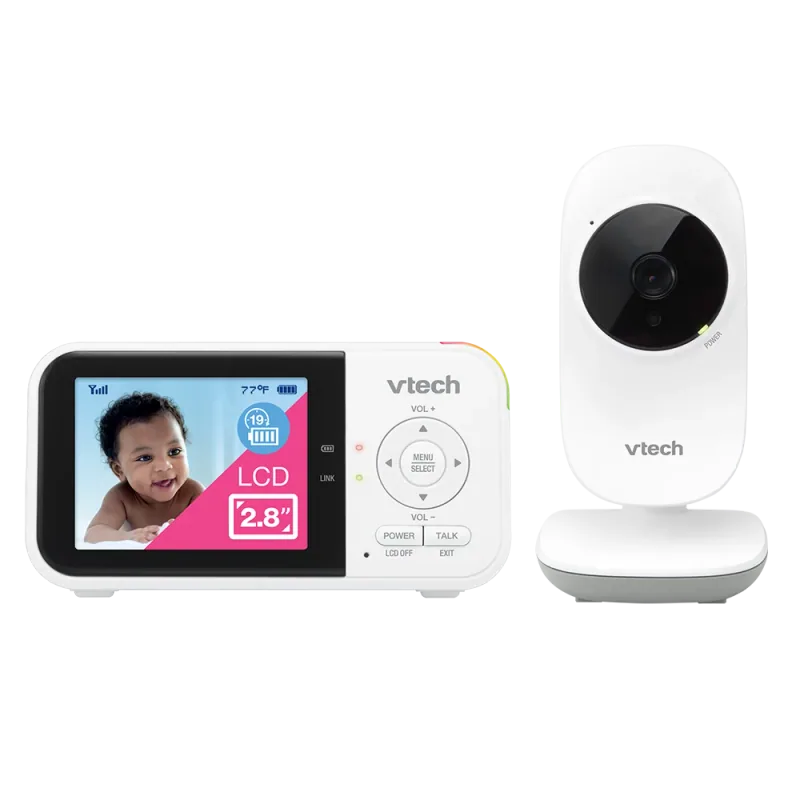
| VTech VM819 | A compact dedicated screen without Wi-Fi | 2.8-inch color parent display | Small display limits visual detail |
| VTech RM5766HD | A parent screen plus remote app access | 5-inch 720p parent display | App depends on supported model generation |
A closer look
Products mentioned in this guide
Actual product photos, manufacturer information, and direct links. Comparisons are based on published specifications; these are not hands-on test results.
01
A compact dedicated screen without Wi-Fi
VTechVTech VM819
The VM819 keeps the basic task straightforward: a camera talks to a separate handheld viewer. Its small screen is easy to carry, although parents who want a wide picture may prefer a larger model. This is a practical example for grandparents, visitors, or households that want to leave their phone available for calls. Manufacturer range and battery figures are maximum claims, so check reception in your actual bedrooms and kitchen. The camera still needs power even when the parent unit is running on its battery.
- 2.8-inch color parent display
- Direct connection without home Wi-Fi
- Two-way talk and night vision
- Temperature display and sound activation
Where it fits
- Separate viewer for caregiver handoff
- No router login for routine use
What to weigh up
- Small display limits visual detail
- No away-from-home app viewing
02
A parent screen plus remote app access
VTech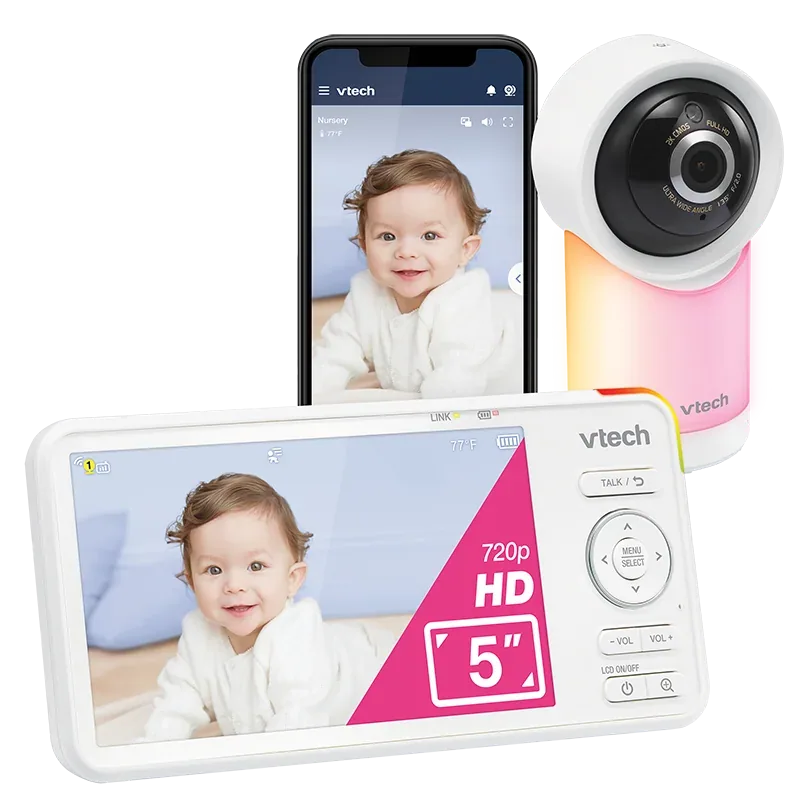
VTech RM5766HD
The RM5766HD sits between a local monitor and a phone-first camera. You get a dedicated parent display while retaining remote viewing through VTech’s supported app. That combination can be useful when one caregiver stays home and another checks in from elsewhere. Pay attention to model generation when downloading the app or manual; VTech has more than one app and similarly named packages. Camera resolution and parent-display resolution are also separate specifications, so a 1080p headline does not mean every screen shows that resolution.
- 5-inch 720p parent display
- 1080p camera video
- Remote pan, tilt and zoom
- Wi-Fi remote viewing and two-way talk
Where it fits
- Screen and app options
- Motorized camera adjustment
What to weigh up
- App depends on supported model generation
- Confirm camera expansion before buying
VM819 and RM5766HD solve different problems
The VM819 is the compact local-viewer example in this guide. Its 2.8-inch screen, sound activation, night vision and two-way talk cover basic room-to-room monitoring. The RM5766HD pairs a five-inch parent display with remote app access and motorized camera movement. Choose between the workflows before comparing the model numbers: a bigger number does not tell you whether a product uses Wi-Fi, supports extra cameras or works with your existing receiver.
The two product cards above link to the manufacturer’s exact model pages and show the actual devices. VTech has moved parts of its baby-monitor catalog to a dedicated baby-care site, so an old store URL may redirect. Use the product label and matching support manual as your reference when an older retailer page remains online.
How to avoid an incompatible camera purchase
Start with the full model identifier, including any suffix that indicates a two-camera package. Next, check the product code or serial information requested by support. Then look for an explicit statement about adding a camera to the parent unit. Being able to add a camera in an app is not the same as pairing that camera to an existing local receiver.
Ask support a specific question: “Will camera model X pair with parent unit Y, and will both rooms provide the audio behavior I need?” Keep the answer with the receipt. This is especially helpful for a secondhand monitor or a replacement bought after a camera is damaged. A matching brand logo and similar-looking casing do not establish compatibility.
A troubleshooting order that saves time
If the receiver loses the camera, check the baby directly, then confirm both power supplies and the parent-unit charge. Try the receiver closer to the camera to separate a range issue from a pairing issue. If local viewing works but the app does not, investigate the network and app side instead of unpairing an otherwise working receiver.
For an RM-series model, use the app named in the current instructions for its generation. Do not install the first VTech app a search result returns and assume an account error means the camera is defective. Note any error message exactly and check whether the problem began after a router, password, phone or software change.

What to compare during the return period
Use the VM819 at the distance and screen size you expect to tolerate at night. With the RM5766HD, test parent-screen viewing and remote viewing as separate tasks. Learn how camera movement, volume and brightness work in low light without turning every screen setting up to maximum.
For both models, distinguish a dark display that is intentionally asleep from a lost connection. Check how the warning behaves, where the charger will live and whether another caregiver can use it without coaching. A first-week setup routine gives you a repeatable way to make that decision.
Find the official instructions first
The VTech support area lets you locate product documentation. Look for the label on your equipment and note the full model name, including any suffix. Some support pages also ask for a product code from the serial label to identify the right documentation.
Save the manual locally and bookmark the support page. A paper note with the model and purchase date is useful if a grandparent or babysitter needs help while you are away. Keep the actual serial number private rather than posting a clear photograph of it in a public review.
Compare the two workflows
A dedicated parent unit gives you a screen and buttons that stay with the monitoring task. That can be convenient when several people share caregiving duties or when you prefer to leave your phone charging elsewhere. The VM819 is one model to investigate in this category.
A connected model may offer additional ways to view the camera. For example, the RM5766HD support listing describes both a parent display and Wi-Fi remote access. Verify the regional version and read how local viewing, internet access and pairing work before assuming the system behaves like a different VTech model.
Check camera expansion before buying
If you expect to monitor two children, buy with that requirement in mind. Similar-looking cameras are not automatically interchangeable. VTech's RM5766HD support page warns that stand-alone cameras cannot simply be added to an existing local parent viewer.
Ask support about the exact pairing you intend to use, giving both model numbers. Also ask whether the display scans between rooms or shows them together, how audio switches, and whether each camera needs its own power outlet. These practical details are more useful than a generic promise that a system is suitable for multiple rooms.
Troubleshoot one change at a time
Start with power, charging, volume and the indicators described in your manual. Confirm whether the problem is the camera feed, parent screen, phone app or network. Writing that down prevents an internet troubleshooting guide from sending you through irrelevant steps.
Follow the official restart or pairing sequence. Avoid performing a factory reset as the first move, because it may erase settings and create additional work. If the problem persists, record when it happens, which devices are affected and whether anything recently changed, such as a router location or a software update.
Choose for the people and rooms involved
During the return window, carry the parent unit through the places you normally spend time. Try it with the bedroom door closed and household electronics operating normally. For a connected model, test caregiver access and confirm how to remove it later.
A larger screen may be pleasant, but reliable sound, manageable alerts and straightforward charging may matter more in everyday use. The best VTech system for your household is the one whose specific features support your routine and whose limitations you understand before depending on it.
A few more details
Your questions, answered
Can I add any VTech camera to my monitor?
No. Compatibility depends on the exact camera and parent-unit models. Check the official support page or ask VTech before buying an additional camera.
Where do I find my VTech baby monitor manual?
Find the full model number on the equipment label, then use VTech's official technical-support pages to locate the matching manual and product-code version.
Can any VTech camera pair with my existing receiver?
No. Compatibility depends on the exact camera, parent unit and model generation. An app supporting an additional camera does not prove that the local parent display supports it.
Why does RM5766HD mention both 1080p and 720p?
The camera video and the parent screen have different specifications. The manufacturer lists 1080p camera video and a five-inch 720p parent display.
Sources & product information
Follow the original sources for current product details, instructions, and guidance.